
Download PDF Enhancer – Reduce PDF Size, Improve Quality & Secure Files
Overview
PDF Enhancer is a comprehensive PDF‑workflow tool built for users who need to trim down file sizes, polish document quality, and lock down sensitive content without breaking the original layout. In an era where PDFs dominate online sharing, the format’s static nature often leads to bloated files and hidden errors that can slow down distribution or cause printing headaches. PDF Enhancer tackles these pain points head‑on by offering a suite of 500+ commands that range from aggressive compression (up to 90 % reduction) to sophisticated clean‑up of scanned pages, watermark insertion, and AES‑256 encryption.
Recent updates have supercharged processing speeds, introduced advanced font and color handling, and added a more reliable linearization engine for faster web‑viewing. While the interface can feel dense for newcomers, the underlying engine is powerful enough to satisfy corporate publishing pipelines, academic researchers, and freelance designers alike. Its ability to preserve annotations, hyperlinks, and form fields means you can compress a multi‑megabyte interactive brochure and still retain every clickable element.
In short, PDF Enhancer is a free‑to‑try, secure, and highly configurable PDF optimizer that blends the convenience of a desktop app with the robustness required by enterprise environments.
Key Features & Capabilities
- High‑ratio Compression: Reduce PDF size by up to 90 % while maintaining visual fidelity.
- Scanned Document Clean‑up: Automatic detection and removal of speckles, shadows, and uneven lighting.
- Advanced Security: AES‑256 encryption, password protection, and digital signature support.
- Linearization (Fast Web View): Optimize PDFs for instant page‑by‑page loading in browsers.
- Watermark & Stamp Engine: Add text or image watermarks, page numbers, and custom stamps.
- Form Field Preservation: Keep interactive fields, checkboxes, and dropdowns intact after processing.
- Batch Processing: Queue dozens of files for simultaneous optimization using command‑line scripts.
- Color & Font Management: Convert colorspaces, embed missing fonts, and fix font substitution issues.
- Proofing & Booklet Creation: Generate printer‑ready booklets and proof copies with a single click.
- Extensive Command Library: Over 500 built‑in commands covering compression, image handling, metadata editing, and more.
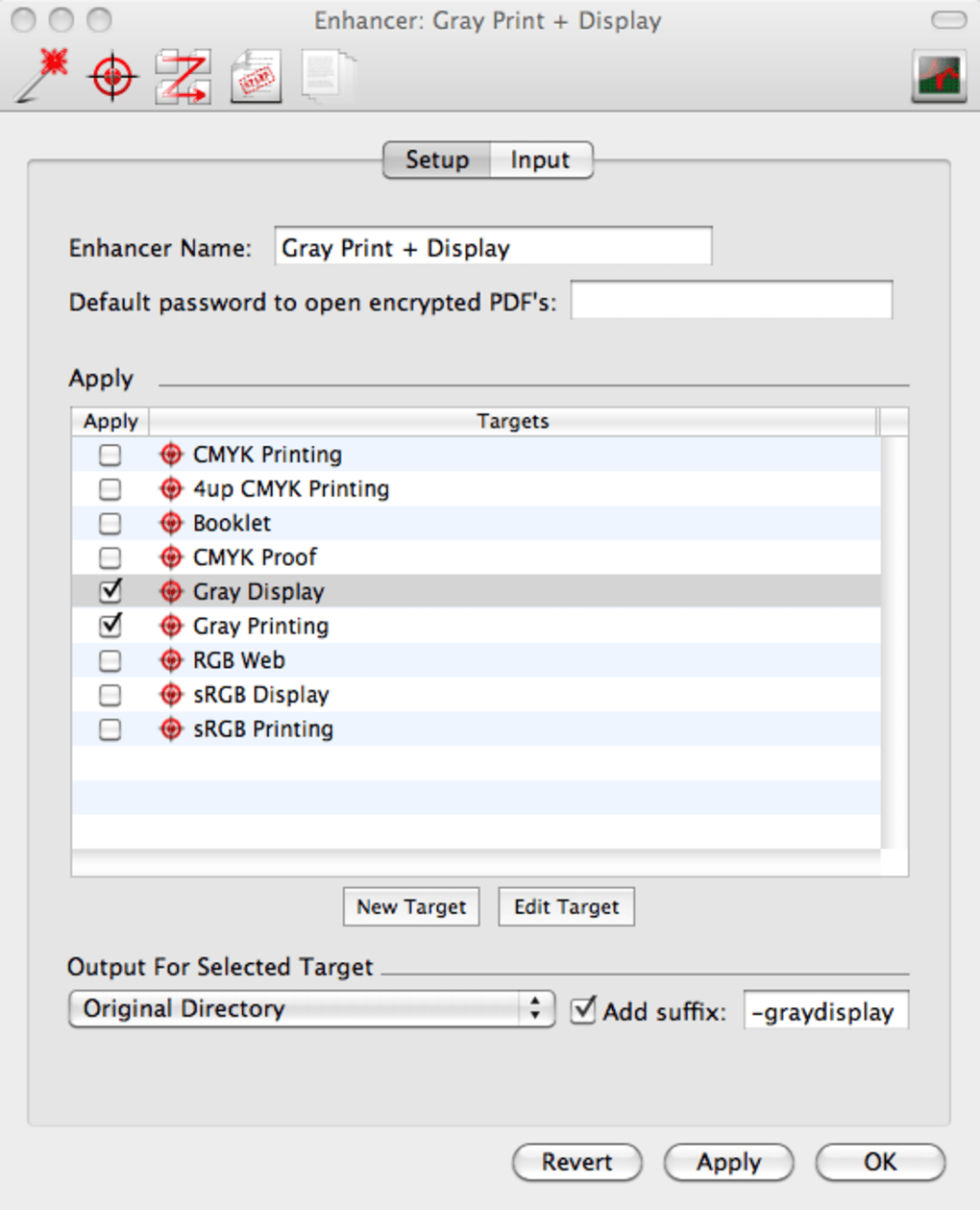
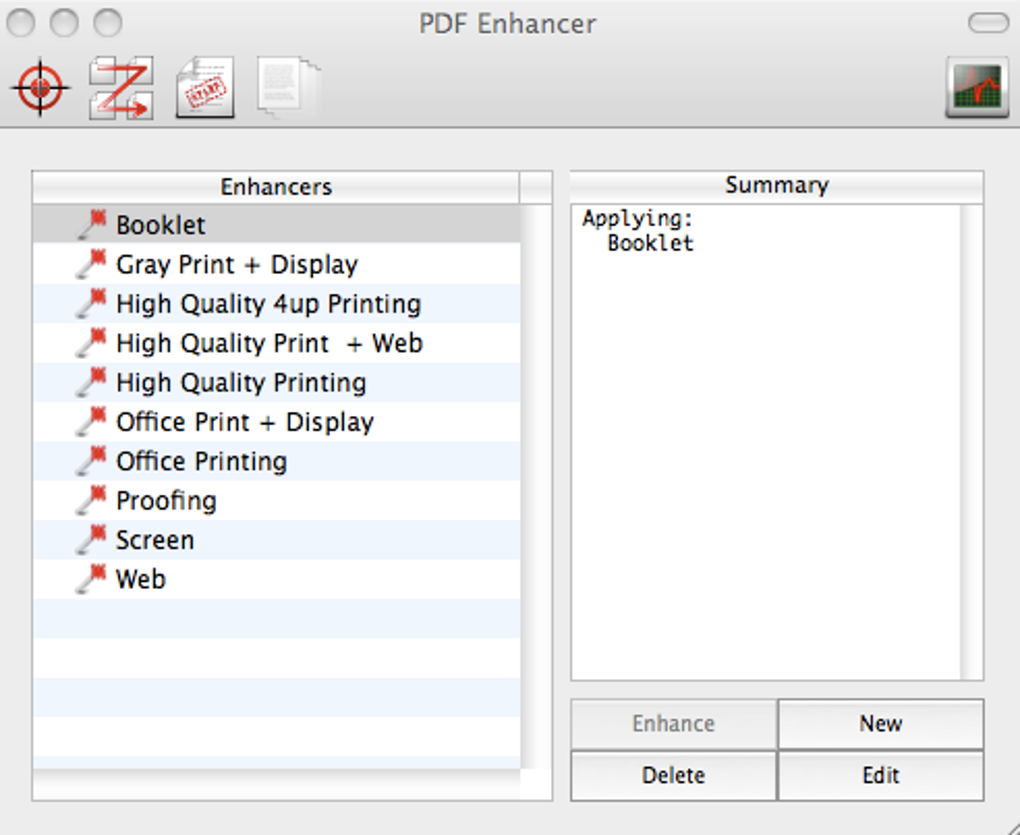
The sheer breadth of features makes PDF Enhancer a versatile ally for any PDF‑intensive workflow. Whether you’re a marketing team needing to ship a lightweight product catalog, a legal department securing confidential contracts, or a researcher cleaning up scanned journal articles, the tool provides granular control that many “one‑click” compressors simply cannot match. Although the UI groups many functions under generic tabs like Booklet, Proofing, and Screen, a quick exploration of the Help → Command List dialog reveals the depth of options available. Power users can also invoke commands directly via the built‑in terminal, enabling automation through scripts or integration with CI pipelines. This flexibility, combined with the recent performance boost, positions PDF Enhancer as a future‑proof solution for both occasional and heavy‑duty PDF handling.
Installation, Usage & Compatibility
Step‑by‑Step Installation
- Visit the official PDF Enhancer download page and click the Download for Windows or Download for macOS button, depending on your operating system.
- Run the installer (
PDFEnhancerSetup.exeorPDFEnhancerInstaller.pkg) and follow the on‑screen wizard. The process typically takes less than two minutes. - During installation, you’ll be prompted to create a shortcut on the desktop and to optionally add the application to your system PATH for command‑line usage.
- Finish the wizard and launch PDF Enhancer. The first launch will ask you to accept the license agreement and to choose a default language.
How to Use the Core Functions
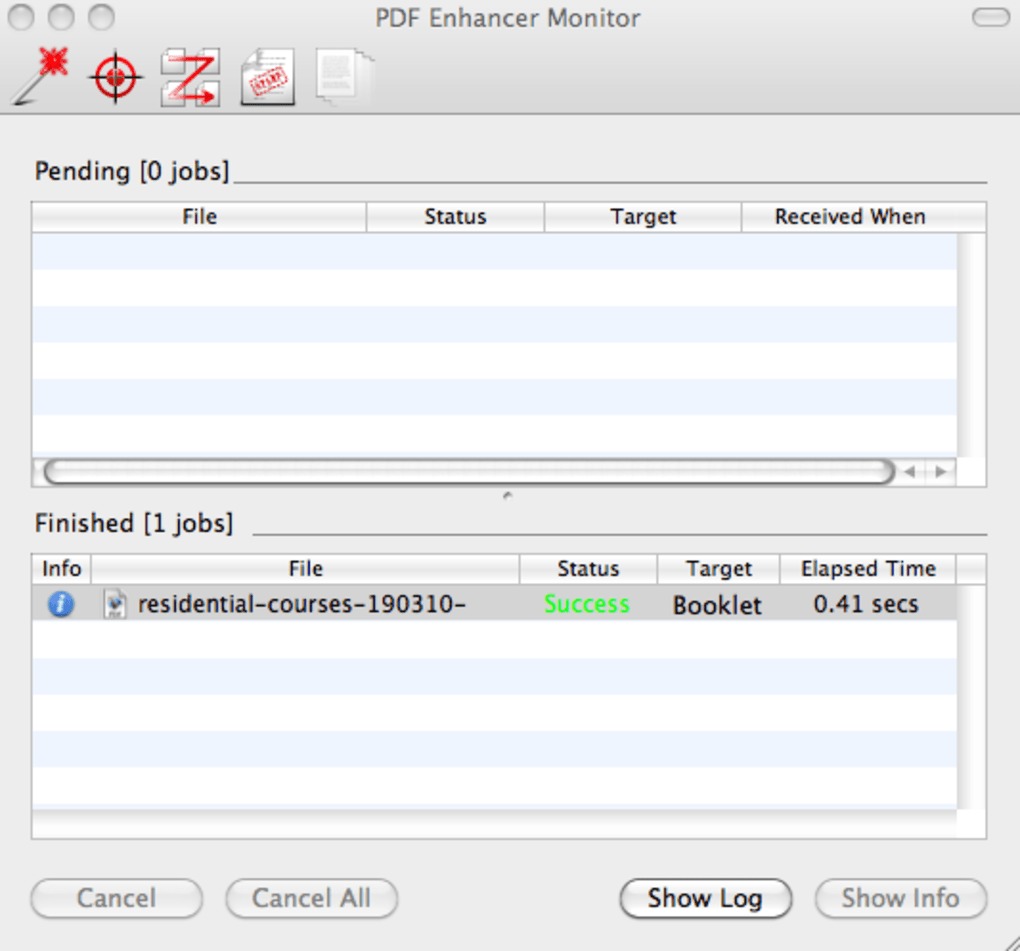
Once opened, the main window displays a toolbar with three primary tabs: Compress, Secure, and Advanced. To compress a file, drag and drop your PDF onto the workspace, select a compression level (Low, Medium, High), and click Start. The progress bar shows real‑time statistics, including the original size, estimated reduction, and processing speed.
For security, navigate to the Secure tab, choose AES‑256, set a password, and optionally enable certificate‑based signing. Advanced users can open the Command Console (via View → Command Console) and type commands such as compress -quality 85 -images jpg or linearize -fastwebview. All changes are saved to a new file, preserving the original untouched.
System Requirements & Compatibility
PDF Enhancer runs natively on Windows 10/11 (64‑bit) and macOS 12 Monterey or later. The application requires at least 2 GB of RAM, 200 MB of free disk space for installation, and a modern CPU with SSE2 support for optimal compression speeds. While a graphical user interface is provided for both platforms, the command‑line interface works on any POSIX‑compatible shell, making it possible to integrate PDF Enhancer into Linux workflows via Wine or a Docker container. The tool also supports batch processing of up to 10 GB of PDFs in a single queue, provided your storage medium can handle the I/O demands.
For mobile users, a lightweight companion app is available on iOS 15+ and Android 11+, offering on‑the‑go compression and password protection, though the full feature set remains desktop‑only. Regular automatic updates ensure you receive the latest security patches and performance improvements without needing to manually download new installers.
Pros, Cons & Frequently Asked Questions
Pros
- Exceptional compression ratios without noticeable quality loss.
- Robust security options, including AES‑256 encryption and digital signatures.
- Batch processing and command‑line support for automation.
- Advanced scanned‑document clean‑up and font handling.
- Free to download with optional paid upgrades for enterprise licensing.
Cons
- Interface can feel overwhelming due to the sheer number of commands.
- Learning curve for users unfamiliar with PDF internals.
- No native Windows Store or macOS App Store distribution (requires manual installer).
- Mobile companion app lacks some advanced desktop features.
FAQ – Frequently Asked Questions
Can PDF Enhancer compress password‑protected PDFs?
Yes. The tool can open password‑protected files, apply compression, and then re‑apply the same password or a new one during the secure step.
Is there a limit to the number of pages PDF Enhancer can handle?
There is no hard‑coded page limit; the practical limit is determined by your system’s RAM and storage. Users have successfully processed PDFs with over 10,000 pages.
How does the linearization feature improve PDF performance?
Linearization reorganizes the file structure so that the first page can be displayed before the entire document downloads, resulting in faster “web view” experiences for end‑users.
Can I integrate PDF Enhancer into my existing automated workflow?
Absolutely. PDF Enhancer provides a full command‑line interface that can be called from scripts, CI pipelines, or other automation tools. You can also use its REST‑like batch API on Windows via PowerShell.
Is the software truly free, or are there hidden costs?
The core compression, security, and clean‑up features are free for personal use. Enterprise deployments may require a paid license for multi‑seat activation and priority support, but there are no hidden fees for the basic version.
Overall, PDF Enhancer delivers a powerful set of tools that justify its steep learning curve. For users willing to invest a few minutes in mastering the command list, the payoff is a dramatically slimmer, cleaner, and more secure PDF library.
Conclusion & Call to Action
If you’ve ever struggled with oversized PDFs that choke email attachments or slow down web pages, PDF Enhancer is the answer you’ve been waiting for. Its blend of high‑ratio compression, advanced security, and batch‑processing capabilities sets it apart from generic PDF compressors. While the interface may initially appear daunting, the extensive documentation and community forums make the learning curve manageable. Whether you’re a solo freelancer looking to streamline client deliverables or an enterprise IT manager tasked with standardizing document workflows, PDF Enhancer equips you with the tools needed to keep PDFs lightweight, pristine, and protected.
Ready to experience faster file transfers and cleaner documents? Download PDF Enhancer now and start optimizing your PDFs for free. For power users, explore the command‑line options and integrate the tool into your automation pipeline to unlock the full potential of this robust PDF workflow engine.